Choose the device for each page type, and hide a widget on parts of your Shopify catalog
AddedA widget can now follow the shopper's device and your catalog, not only the page type. Both are on the General tab of the widget editor.
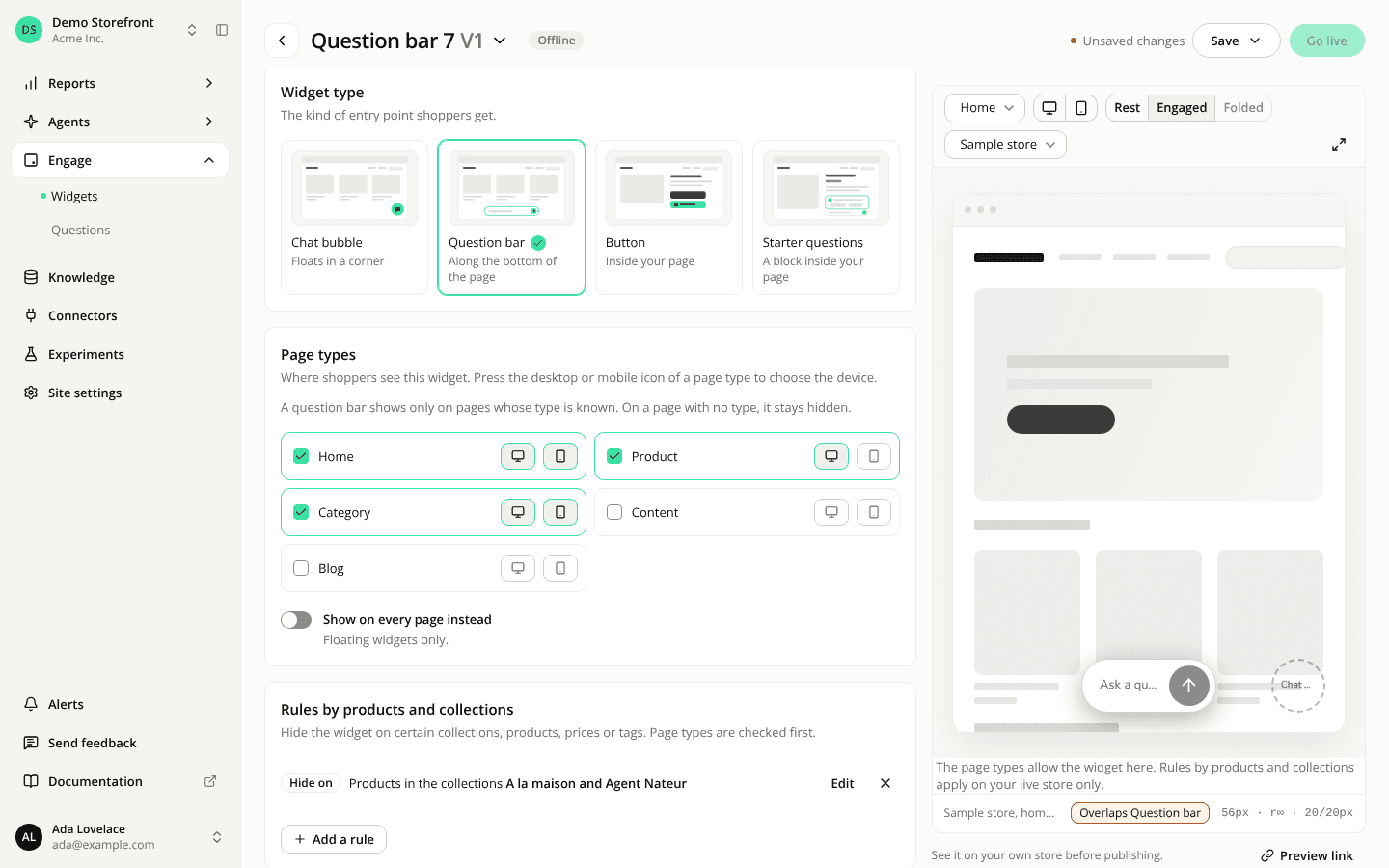
Desktop and Mobile toggles on each page type. Every tile in the Page types card has a checkbox and two icon toggles, Desktop and Mobile. Click the checkbox or the page type's name to turn on both devices (or to turn the page type off). Both pressed is the default: the widget shows on both. Press only one to limit that page type to a device, or press none to take the page type off. A question bar that covers the add to cart button on a phone can now stay on your desktop product pages and leave mobile ones alone. Mobile means a viewport of 767 px or less. The shopper's browser decides, so resizing a window across that width updates the widget at once.
Widgets you already have keep showing on both devices until you press a toggle. Show on every page instead overrides the toggles. The editor preview follows its Desktop / Mobile switch.
Rules by products and collections. A chat bubble or question bar also gets a new Rules by products and collections card under Page types. A rule hides the widget on part of your store (Hide on), or limits it to that part (Show on). It can be based on a collection, specific products, a price under or over an amount, or a tag.
Page types still come first, and hide wins over show. A Show on rule limits product and collection pages only: on the other pages, the widget keeps following your page types. When your shop cannot be read on a product or collection page, the widget does not show there, as long as your site's page lookup answers. Rules work with a connected Shopify catalog only, and not on the button or Starters.
Device choices and rules are part of the draft, so they reach shoppers when you go live, and a change can take a few minutes to show. The preview does not simulate the rules. Both arms of an A/B test must have the same device choices and the same rules.
Resources